Exporting Workspace
In this section, you will learn how to export a workspace.
You can export only one workspace at a time.
When you export a workspace, the following is exported on your local computer:
-
All layers in the workspace
-
All stories in the workspace
-
All reports in the workspace
To export a workspace, do the following:
-
Login to the platform.
-
Click the Collaborate module, and then click the Workspaces sub-module.
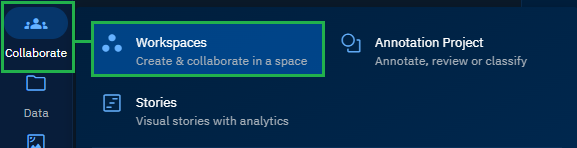
The Workspaces Dashboard is displayed.
-
In the Workspaces Dashboard, locate the workspace that you want to export, and then click to open the workspace.
-
In the workspace page, click the Export button.

The Export Workspace dialog box is displayed.
-
In the Export Workspace dialog box, select or clear the checkboxes for the layers, stories, or reports that you want to export

-
Type a new name for the export file or rename the exisiting file name in the Export File Name field.
-
Click the Export button to export the selected layers, stories, and/or reports of the workspace.
The platform starts the process of exporting the workspace.
-
Click Data module > Export module to verify the workspace export. If the export is successful, you can proceed to download the exported workspace.
-
Click the Download icon to save exported workspace .(zip) file on your local computer.
